The Ultimate Webtoon Canvas Size & Slicing Guide (2026): How to Format, Slice, and Publish Without Quality Loss
By ZealPlane Studio | Senior Pop Culture & Manga Analyst | ZealPlane Chronicles
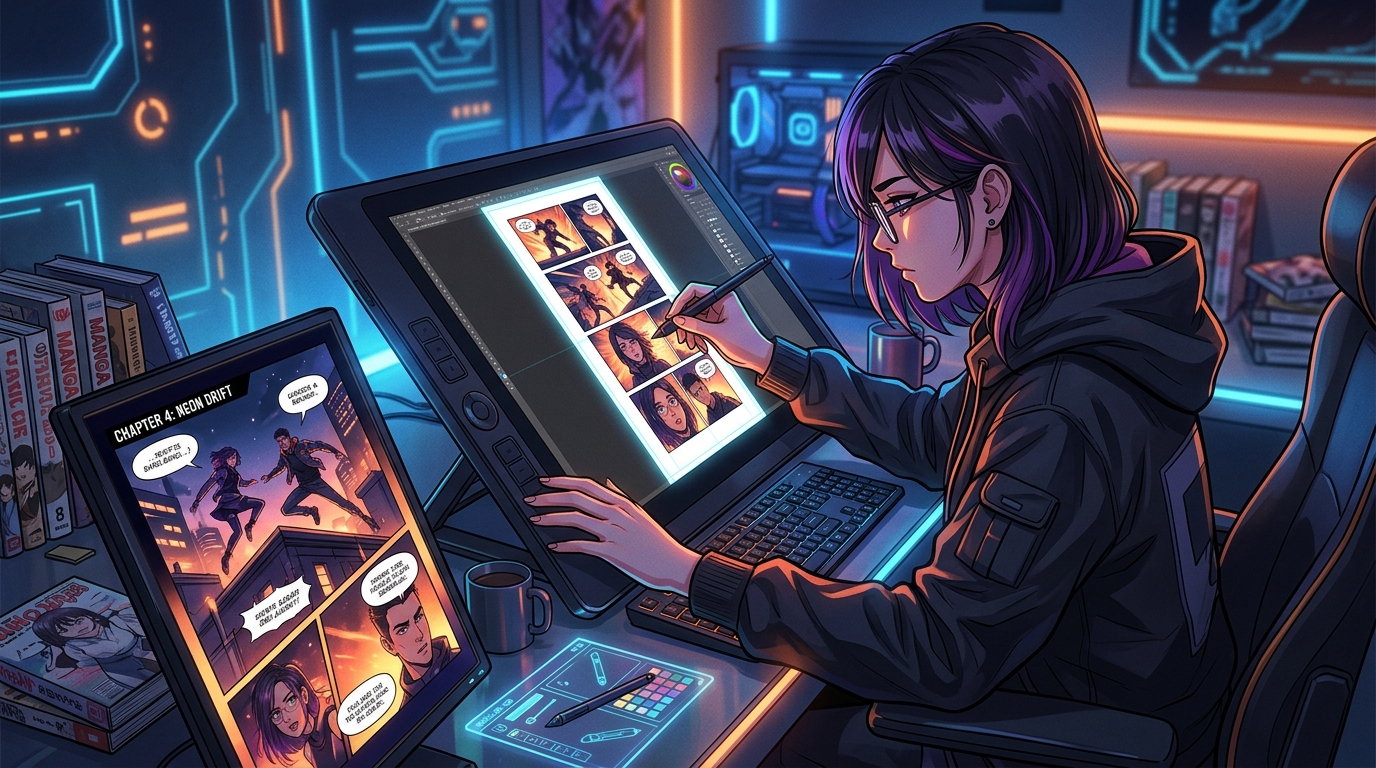
**Drawing a comic is hard enough. But for thousands of webtoon creators, the real headache begins the moment they try to export and upload their vertical strips to LINE Webtoon or Tapas.**
You spend dozens of hours penciling, inking, coloring, and lettering your episode. You finally export your long canvas—only to be greeted by frustrating error banners:
> *"The image resolution must be 800 pixels wide."*
> *"File size exceeds 2MB."*
> *"Image height exceeds the maximum limit."*
Even worse: after frantically chopping your image into chunks using basic cropping tools, you preview your chapter on mobile, only to discover that your split lines cut right through the middle of your main character's face and sliced your dialogue bubbles in half.
Whether you are drawing in **Clip Studio Paint**, **Photoshop**, or **Procreate**, this complete masterclass explains the exact canvas specifications for LINE Webtoon and Tapas in 2026, why you should never draw at 800px width, and how to automate the entire slicing workflow for free.
---
## 1. The Official LINE Webtoon Canvas Guidelines (2026)
LINE Webtoon Canvas enforces very strict file specifications. If your file deviates by even a single pixel, the creator dashboard will reject your upload:
* **Slice Width:** Exactly **800 pixels** (Fixed requirement).
* **Maximum Slice Height:** **1,280 pixels** per image slice.
* **Maximum File Size:** **2.0 MB** per individual slice.
* **Accepted Formats:** **JPG (JPEG)** or **PNG** (RGB color mode only; CMYK files will fail to display).
* **Episode Limit:** Up to 100 slices (images) per episode, with a total episode upload cap of 20MB.
### Why Does Webtoon Enforce 800 × 1280px?
LINE Webtoon serves billions of page views each month to mobile readers on cellular networks.
By constraining images to 800px wide and 1280px tall chunks, the Webtoon mobile reader can **lazy-load images seamlessly** as readers scroll downward. This prevents the mobile app from crashing due to running out of GPU memory when loading a 40,000-pixel-long strip.
---
## 2. The Golden Rule: Never Draw at 800px Width
One of the most common mistakes beginner webtoon creators make is setting their initial canvas width to 800px in Clip Studio Paint or Procreate.
**Do not draw at 800px.**
When you draw at 800 pixels wide, you have virtually zero line-weight fidelity. If you ever want to:
1. Print physical volumes or trade paperbacks of your comic
2. Sell high-resolution prints or posters at conventions
3. Zoom in to ink detailed background art or facial expressions
...your art will look horribly pixelated and blurry.
### Recommended Working Canvas Dimensions
Professional webcomic artists work on higher-resolution canvases and only downscale to 800px during the final export phase:
| Resolution Level | Canvas Dimensions (W × H) | DPI | Best For |
| :--- | :--- | :--- | :--- |
| **Standard HD (2×)** | **1,600 px × 20,000 px** | 300 DPI | Recommended baseline for most laptops & iPad Procreate |
| **Ultra HD (3×)** | **2,400 px × 30,000 px** | 300–600 DPI | Standard studio resolution for high-detail action manhwa |
| **Print-Ready (4×)** | **3,200 px × 40,000 px** | 600 DPI | Creators intending to publish physical graphic novels later |
By working at **1600px or 2400px wide**, your brushes retain crisp textures, linework remains smooth, and lettering looks sharp. When downscaled to 800px for webtoon upload, the downsampling acts as a natural antialiasing filter, making your episode look significantly more professional than art drawn natively at low resolution.
---
## 3. The Slicing Dilemma: Blind Cuts vs. Smart Safe Cuts
Once your episode strip is finished (often 20,000 to 50,000 pixels long), you must divide it into 15 to 40 individual slices of 1280px height each.
Historically, creators used legacy tools like **Croppy** or manual slice tools in Photoshop. But standard cropping scripts have a fatal flaw: **they slice blindly at fixed intervals every 1280 pixels.**
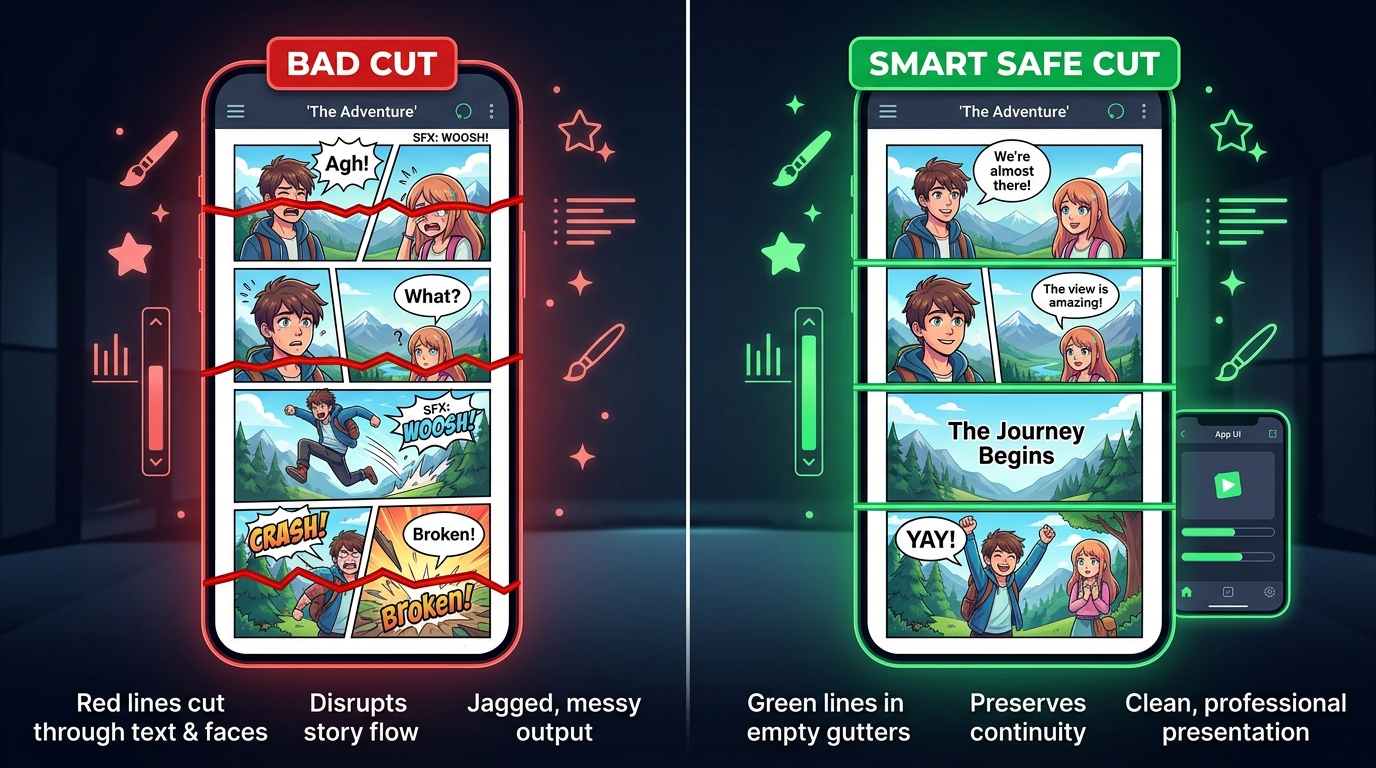 *Comparison: How blind cutting ruins panel continuity vs. how Smart Safe Cut dynamically slices in empty gutter margins.*
When a blind cut happens to land at the 1280px mark:
* Dialogue speech bubbles are sliced in half, creating ugly jagged seam artifacts on high-resolution screens.
* Character faces and dramatic panels get broken awkwardly between two image files.
* If a reader's mobile connection lags slightly, half a face or half a sentence loads while the other half hangs.
### The Solution: Smart Gutter Safe-Cut
Instead of cutting blindly at exactly 1280px, modern algorithms inspect a **search window (±60px)** around each target cut line. By analyzing pixel variance across each horizontal row, the algorithm detects empty panel gutters (solid white, black, or flat background color) and shifts the slice line into the gutter.
Panels and speech bubbles remain 100% intact, creating a clean reading experience.
---
## 4. How to Slice Your Comic in Seconds with the Free ZealPlane Slicer
To make this entire workflow effortless and accessible to every creator, ZealPlane has launched a **100% free, browser-based Webtoon Slicer tool**.
Unlike older web tools that force you to upload 50MB files to remote servers (which frequently crash or compromise privacy), the **ZealPlane Slicer runs entirely client-side inside your browser's HTML5 Canvas engine**. Your artwork never leaves your computer.
*Comparison: How blind cutting ruins panel continuity vs. how Smart Safe Cut dynamically slices in empty gutter margins.*
When a blind cut happens to land at the 1280px mark:
* Dialogue speech bubbles are sliced in half, creating ugly jagged seam artifacts on high-resolution screens.
* Character faces and dramatic panels get broken awkwardly between two image files.
* If a reader's mobile connection lags slightly, half a face or half a sentence loads while the other half hangs.
### The Solution: Smart Gutter Safe-Cut
Instead of cutting blindly at exactly 1280px, modern algorithms inspect a **search window (±60px)** around each target cut line. By analyzing pixel variance across each horizontal row, the algorithm detects empty panel gutters (solid white, black, or flat background color) and shifts the slice line into the gutter.
Panels and speech bubbles remain 100% intact, creating a clean reading experience.
---
## 4. How to Slice Your Comic in Seconds with the Free ZealPlane Slicer
To make this entire workflow effortless and accessible to every creator, ZealPlane has launched a **100% free, browser-based Webtoon Slicer tool**.
Unlike older web tools that force you to upload 50MB files to remote servers (which frequently crash or compromise privacy), the **ZealPlane Slicer runs entirely client-side inside your browser's HTML5 Canvas engine**. Your artwork never leaves your computer.
Bad Slicing vs Smart Safe Cut Diagram
Free Creator Tool
### 3-Step Slicing Walkthrough:
1. **Upload Your Strips:** Drag and drop your full-length PNG, JPG, or WebP canvas file directly into the tool. You can queue multiple chapters at once.
2. **Select Your Preset:** Choose **LINE Webtoon** (800×1280px), **Tapas** (940×1280px), **ZealPlane Originals**, or **Instagram Story** (1080×1920px for vertical promo reels).
3. **Download ZIP:** Click **Slice Images**, verify the visual slice gallery, and hit **Download All as ZIP**. All slices are neatly labeled in numerical order (`chapter1_slice_001.jpg`, `chapter1_slice_002.jpg`, etc.) and ready for immediate dashboard upload.
---
## 5. Platform Comparison: Webtoon vs. Tapas vs. ZealPlane
If you are serializing your indie comic across multiple platforms, here is the complete 2026 specifications cheat sheet:
| Platform | Max Width | Max Slice Height | File Size Limit | Supported Formats |
| :--- | :--- | :--- | :--- | :--- |
| **LINE Webtoon Canvas** | 800 px | 1,280 px | 2.0 MB / slice | JPG, PNG |
| **Tapas** | 940 px | 1,280 – 4,000 px | 2.0 MB / slice | JPG, PNG, GIF |
| **ZealPlane Originals** | 800 – 1,080 px | 1,280 px | 5.0 MB / slice | WebP, JPG, PNG |
| **Instagram Reels / Story** | 1,080 px | 1,920 px (9:16) | 8.0 MB | JPG, PNG |
---
## 6. Pro Tips to Avoid Blurry Webtoons
* **Always Export in sRGB Color Mode:** Digital screens read sRGB. If you accidentally export in CMYK, colors will appear washed out, neon, or inverted on Android and iOS devices.
* **Keep Dialogue Text at Least 14–16pt:** When downscaled to 800px, small text becomes illegible on phone screens. Test your dialogue on an actual phone before publishing.
* **Leave Generous Gutter Space Between Panels:** Aim for at least 200px to 400px of vertical white space between emotional beats. This gives readers the pacing needed for smooth scrolling.
* **Use 85% to 90% JPG Quality:** Setting JPEG quality to 100% quadruples file sizes with virtually zero perceptible improvement on mobile screens. 88%–92% quality keeps files well below Webtoon's 2MB threshold while eliminating compression artifacts.
---
## 7. Ready to Share Your Comic With the World? Publish on ZealPlane
If you are an independent creator, Webtoon and Tapas are great, but standing out among hundreds of thousands of series is harder than ever.
**ZealPlane** is India's fastest-growing digital comic platform, dedicated to empowering independent visual storytellers, manga artists, and comic creators:
* **100% IP Ownership:** You keep all copyright, merchandising, and adaptation rights to your characters and story.
* **Engaged Vernacular & Global Readership:** Reach readers passionate about indie comics and manga across India and worldwide.
* **Direct Monetization:** Earn reader tips, coin rewards, and community upvotes from day one.
Ready to start? Use our [Free Webtoon Slicer](/tools/webtoon-slicer) to format your chapter, then head to [ZealPlane Studio](/forum/create-post) to publish your first episode today.
ZealPlane Webtoon Slicer & Strip Splitter
Split massive vertical strips into 800×1280 Webtoon & Tapas slices with Smart Gutter detection. Zero server upload, batch chapter queue, and 1-click ZIP download.
✂️ Launch Free Webtoon Slicer Tool →🚀 Ready to Publish Your Formatted Comic?
Now that your pages are formatted and sliced, learn how to distribute them for free: Read our complete Step-by-Step Guide to Publishing Comics & Manga in India (2026) with ₹0 platform fees and 100% creator ownership.
Featured Original Indian Indie Comics on ZealPlane
Explore original indie comics available free to read online:
Trending Indie Webcomics & Manga
- Read Chullu aur Lootera Bhoot online free
- Read My most favorite gags of Guddu online free
- Read Chullu aur Khadoos uncle online free
- Read Animocity Review online free
- Read When horror meets humour online free
- Read THE GIRL INSIDE THE CUPBOARD online free
- Read वज्रयोद्धा By Magha Studio online free
- Read Read 'GHOST IN THE CROWD' by Prince Ayush online free
Latest Pop Culture & Comic News
- One Piece Chapter 1195 Spoilers: Release Date, Global Schedule, and Early Elbaph Hints
- Are Demon Slayer's Breathing Techniques Actually Real — Or Just Visual Flair?
- Spider-Man Is Doing Luffy's Gear 2 Pose, and Fans Are Rightfully Losing It
- Spider-Man Is Doing Luffy's Gear 2 Pose, and Fans Are Rightfully Losing It
- The Ultimate Webtoon Canvas Size & Slicing Guide (2026): How to Format, Slice, and Publish Without Quality Loss
- Beyond Squid Game and Alice in Borderland: 5 Death Game Stories That Actually Get Under Your Skin